¶ What is MonAI?
MonAI is an AI art generator powered by Stable Diffusion. You can create AI art in seconds just by entering a text prompt. You can also upload your own images, and try your prompts with various AI models and styles to achieve different looks.
¶ What is an AI model?
An AI model is a program or algorithm that uses training data to perform a task. AI art models are trained with images which, in turn, allows them to replicate the look of those images. For example, a photorealistic AI art model would be trained with more photographs, whereas an anime model would be trained with more anime art.
¶ What is a Style?
Styles combine AI models, prompts, negative prompts, and other settings to create great results in a particular style. Some styles reflect artistic mediums, like ink and watercolor. Some create the look of an artistic movement, like impressionism, or a genre, like steampunk.
Some styles represent AI models. Many AI models are trained to achieve a specific result, like photorealism. The corresponding style includes prompts chosen to achieve the best results for that AI model.
¶ Generating Artwork
¶ How do I use MonAI?
- Write a Description. Steampunk airship. Enchanted elven forest. What do you want to create?
- Select a style, like Anime or Photorealistic. The styles will select an AI model and possibly add keywords and negative keywords.
- Tap the create button. Your art will be ready in seconds.
¶ What is a prompt? How do I create art with prompts?
Any text you enter into the description box is a prompt. If you are looking for ideas, tap one of the suggestions below the text box. If you add a style, any keywords and negative keywords added by the style will also be part of the prompt. Once you press the “Create” button, the AI will generate artwork based on its understanding of the prompt.
¶ Why is there a 1000 character limit?
Stable Diffusion has a limit to how much of a prompt can be processed at one time. Specifically, there is a 150 ‘token’ limit. Tokenizers help AI to understand human language, because machines work with numbers, not words. Just as words cannot directly translate to numbers, tokens are not directly translatable to characters, so the 1000 character limit is only an estimate.
¶ How do I edit a creation?
Tap the edit (rectangles) button below the generated image. From there, you can change your text, select a different style, see it with a different AI model, or change any other settings to modify the results.
¶ What does the "Remix" button do?
The Remix button generates another artwork with the same prompts as previously used, changing only the initial seed image.
¶ I got an NSFW warning as a prompt result! What should I do?
Don’t panic! You have the option to delete the result immediately, or you can view it anyway. If you had no questionable terms in your prompt, then it was likely a false positive flag for NSFW and viewing the image would more than likely be fine.
Some of the photorealistic AI models have a tendency to render nudes if you do not specify a type of clothing. A prompt of “beautiful woman” may result in an artwork of a nude woman. To avoid this, add “nude” and “naked” to the negative prompts, or specify what you want the woman in the artwork to wear.
¶ Advanced Options
¶ What does the "Guidance Scale" slider do?
Guidance Scale (CFG) controls how much the AI adheres to the prompt. Increase to conform to the prompts, but BE AWARE this often comes at the expense of image quality. Numbers between 4 and 11 yield better results. The best results are seen with numbers from 6-8.
¶ What does the “Steps” slider do?
Images are rendered step by step, starting with a seed image of static. 25 steps is generally ideal to generate a high quality image. Increase the steps for more details and cleaner faces at the expense of speed. In most cases, increasing the steps above 45 will not create a significant difference in quality.
¶ What is a seed?
The seed number corresponds with a noise pattern, similar to television static, that is used as the basis for the generated art. Step by step, the AI redesigns the static into art according to your prompts. When you change the seed number, the AI will reimagine the artwork in a different way. Tapping the die to the right of the seed box randomly generates a seed for you.
¶ How can I change the size of my artwork?
In the Advanced Options, there is a section for Size with sliders to change the height and width of your artwork. On the right are several popular options (512x512, 768x768, 512x768, 512x1024, 768x960 and 1024x1024). There are also text fields where you can enter numbers and the closest available option will be selected.
¶ Negative Prompts & Negative Embeddings
¶ What is a "Negative Prompt"?
Use negative prompts for things you want to exclude or fix. If you render a house in the desert, and the result has plants you don't like, use "plants" as a negative prompt to remove them.
You can also use Negative Prompts to fix common AI art problems like missing limbs or extra fingers. Check the suggestions for ideas.
¶ What is a “Negative Embedding”?
Negative embeddings are used in the negative prompt field, but they are actually trained models created from images. Bad images. Images of things you want to avoid, like mangled arms and extra fingers.
Here is a tutorial:
https://wiki.monai.art/tutorials/negative_embeddings
¶ Initial Images
¶ What does using an "initial image" do?
Using an initial image gives the AI an image to render from. This can be anything from a photo to a simple sketch. You can upload an image from your storage, from Unsplash, from an in-app sketch you make, from a URL, or from a previous render.
¶ What is "Unsplash"?
Unsplash is a website that provides a large collection of free, high resolution images that can be used for personal or commercial purposes. The platform is powered by a community of photographers who contribute their own photos for others to use. Unsplash has become a popular resource for designers, bloggers, and anyone needing high-quality images.
¶ Is the seed still relevant if you use an initial image?
Yes. The seed image is still used, even with an initial image. Changing the seed will give you a different result, depending on prompt strength.
¶ What does the "prompt strength" slider do?
When you use an initial image, the AI still considers the input from your text prompt AND the seed. Increasing the Prompt Strength tells the AI to put more importance on the input from the prompt and seed, and the output will look less like the initial image. Decreasing prompt strength will make the output look more like the initial image.
Here is a tutorial:
https://wiki.monai.art/en/tutorials/initial_images
¶ What is "Inpainting"?
Use Inpainting to fix or change something in your artwork. You can mask the portion of your artwork you would like to change, and the AI can fill in the gaps.
Here is a tutorial:
https://wiki.monai.art/en/tutorials/inpainting
¶ AI Models
¶ Why are there different AI Models? Which AI Model should I use?
Each AI Model is trained with different image sets to create different results. It’s worth trying one of your prompts with each model to get a feel for yourself.
Click here to find out more about each of the AI models:
https://wiki.monai.art/en/tutorials/ai_models
¶ Your Artwork and Galleries
¶ What does it mean to publish your artwork?
When you tap the publish button (person with +) your artwork will be added to your public gallery. People who visit your profile will see the artwork in your public gallery.* The artwork will also be submitted to appear in the MonAI home feed.*
Art in your public gallery will still remain in your private gallery as well. The link to your public gallery is above your artwork feed to the left (person in box). The only way to remove an artwork from the public gallery is to delete the artwork altogether using the trash can. This will delete the artwork from both the public and private galleries.
*Please note, if you have received an NSFW warning on an artwork, it will not be visible in the MonAI home feed, or to people who visit your profile.
¶ What are the 3 buttons above the artwork in my profile?
The center button (four squares) is your personal gallery. When you create an artwork, it is added to this gallery. The button on the right (eye with slash) is your hidden gallery. If you tap the eye above an artwork, it will move the artwork to this hidden gallery. You can also delete the artwork altogether by tapping the trash can.
Only you can see your personal and hidden galleries.
The button on the left (person in box) is your public gallery. When you add an artwork to your public gallery, it will be visible to anyone who visits your profile page.* It will also be submitted to appear in the MonAI home feed.*
When you tap the publish button (person with +) your artwork will be added to your public gallery.* The artwork will still remain in your private gallery as well. The only way to remove an artwork from the public gallery is to delete the artwork altogether.
*Please note, if you have received an NSFW warning on an artwork, it will not be visible in the MonAI home feed, or to people who visit your profile.
¶ If I follow someone, am I more likely to see their artwork in the MonAI home feed?
Yes.
¶ What does the eye icon do?
Tap the eye icon (above your artwork) to move it to your hidden gallery. It’s a good place to keep artwork if you’re not sure you want to delete it.
¶ How do I delete an image?
Tap the trash can (above your artwork) to delete an image permanently.
¶ Can I hide or delete multiple images at once?
If you zoom out in your gallery, you'll see a small white box in the upper left corner of each artwork. If you tap the box, a menu will appear at the top of the screen with options to hide or delete the artwork. You can continue to select artworks and then hide or delete them all at once.
¶ Are deleted images saved somewhere?
No. Once you delete an image, it is permanently deleted from our files.
¶ Creating an Account
¶ Why should I make an account?
Making an account is free and easy to do. Once you have an account, your artwork will be saved, even if you have to uninstall the app or change devices.

How do I make an account?
Go to the 3 dots menu on the lower right corner and tap “Login” and then “Register” at the bottom of the screen.

If I sign up with an account, will I lose the creations I have already made?
No, you will not lose your creations, so go ahead and sign up. *You may need to close the app and re-open to see your earlier images after creating your account.
¶ Promptcrafting
¶ In simple terms, how do you make an effective prompt?
Describe what you want, how you want it, where you want it, followed by style information. For example:
Beautiful woman with flowers in her hair, wearing a red dress, standing in a forest, highly detailed, photo
The built-in styles are a good guide for style information, but they are there to be customized. If you’re looking for ideas, check out the keywords.
¶ Prompt Weighting
¶ What is prompt weighting?
Sometimes the AI will ignore parts of your prompt. Prompt weighting is a powerful tool that allows you to add weight or importance to a word or words in your prompt that may otherwise be ignored.
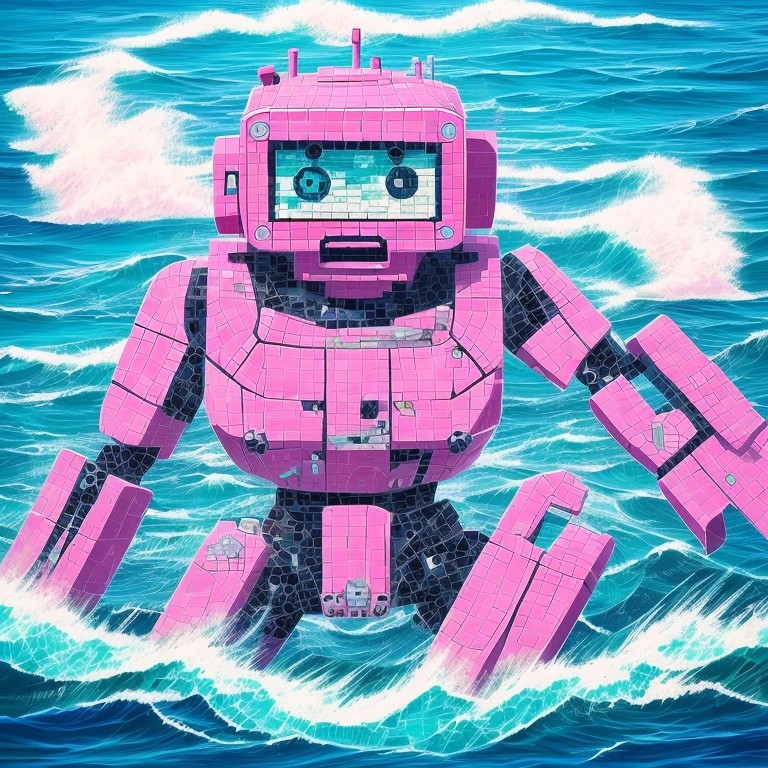
Here's an example where I wanted to create a mosaic design:
 |
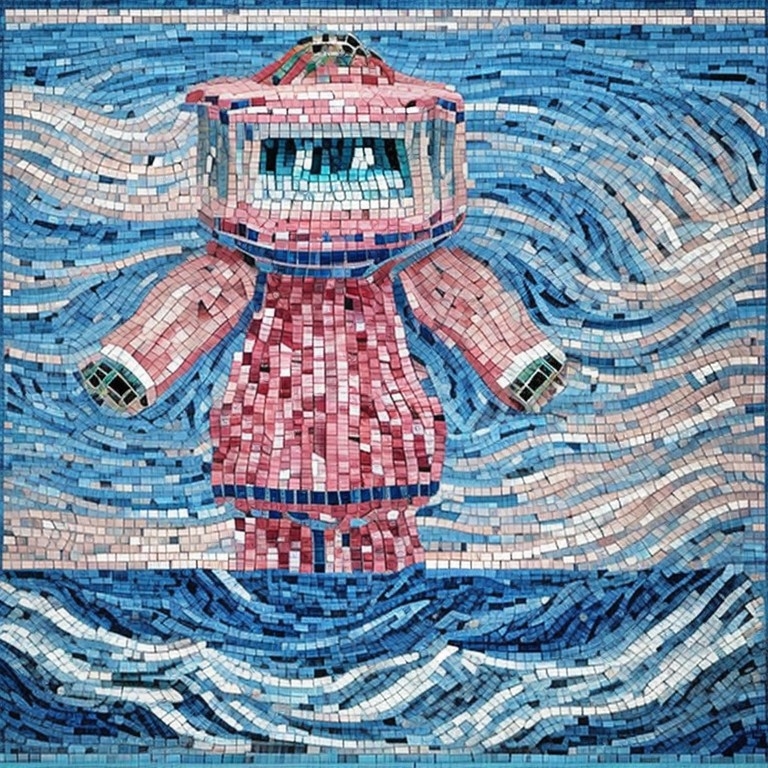 |
| Prompt: giant pink robot in the ocean, surrounded by ocean waves, mosaic art |
Prompt: giant pink robot in the ocean, surrounded by ocean waves, (mosaic art:1.3) |
In the example on the left, the AI gave the robot a subtle mosaic texture, but there is no mosaic in the background. Once I added prompt weighting, as shown in the example on the right, the AI created a true mosaic design.
¶ How does prompt weighting work?
Put the word or words you want to weight inside a parenthesis, followed by a colon and a number, like this:
Beautiful woman in a rose garden, wearing a (purple lace dress:1.2), holding a (basket of red roses:1.3)
The greater the number, the greater the weight. You can go all the way up to 1.9, but no higher! If you want to reduce the weight of a term, you can use a smaller number, like this:
Beautiful woman in a rose garden, at night, (eerie:0.8), insane details, realistic, (dark:1.4)
In this case, I wanted just a hint of eeriness, but more than none.
¶ Is there another way to do prompt weighting?
Yes. You can also increase or decrease the weight of a term by adding plusses or minuses, like this:
Beautiful woman in a rose garden, wearing a (purple lace dress)++, at night, eerie--, dark++++
+ is equivalent to 1.1; however, ++ is 1.1 x 1.1 or 1.21, which is not exactly the same as 1.2
Similarly, – is 0.9 x 0.9 which is 0.81
Ergo, the plus/minus method will give slightly different results than the numeric method, UNLESS you used multiple decimal places.
¶ Can I use multiple decimal places?
Yes.
Beautiful woman in a rose garden, wearing a (purple lace dress:1.21), at night, (eerie:0.81), (dark:1.4641)
Will give the exact same result as the plus/minus example I used above.
¶ TIPS
¶ Artist’s Names
If you want your work to emulate the style of an artist, add the name of that artist to the end of your prompt.
Try adding multiple artists’ names to see a blend of their styles. Check out the Artist section in Keywords for ideas!
Impressionist art captures a quick impression of a scene. Try adding Claude Monet, Pierre-Auguste Renoir, Edgar Degas, Édouard Manet or Camille Pissaro at the end of the MonAI Impressionist style.
Cubist art represents 3D forms with fragmented realities. Try adding Pablo Picasso, Georges Braque, Paul Cézanne, or Salvadore Dali at the end of the MonAI Cubist style.
Expressionist art tries to express emotion rather than reality. Try adding Edvard Munch, Franz Marc or Vincent Van Gogh to your Expressionist renders.
Fauvism was characterized by vibrant complementary colors and strong brush strokes. Try adding Henri Matisse, Andre Derain or Maurice de Vlaminck to your Favism renders.
¶ Negative prompts
Avoid using too many negative prompts. If you notice poor image quality, try removing redundant or irrelevant negative prompts.
Try adding “poorly drawn face” as a negative prompt to fix poorly drawn faces.
“More than 1…” is a good negative prompt for removing duplicates. If you want to render 1 person and get 2, try adding “More than 1 person” as a negative prompt.
If your cartoon-style artwork resembles a photo, add “photo” to the negative prompts.
Add “color” to negative prompts if your black and white renders have bits of color.
¶ Promptcrafting
Add “portrait” to your prompts when rendering images of people.
Add “very coherent” to your prompts when rendering steampunk or high tech designs.
Add “beautiful” to your prompts to create more attractive artworks.
Add “highly detailed” to create more interesting artworks. “Insane details” creates interesting, if sometimes surprising, results.
A shorter prompt often leads to more attractive art.
The words at the beginning of a prompt are given the highest importance. Words at the very end are also stressed. Words in the middle are more likely to be ignored.
Source: the MonAI wiki · Updated · First published