¶ Inpainting Tutorial
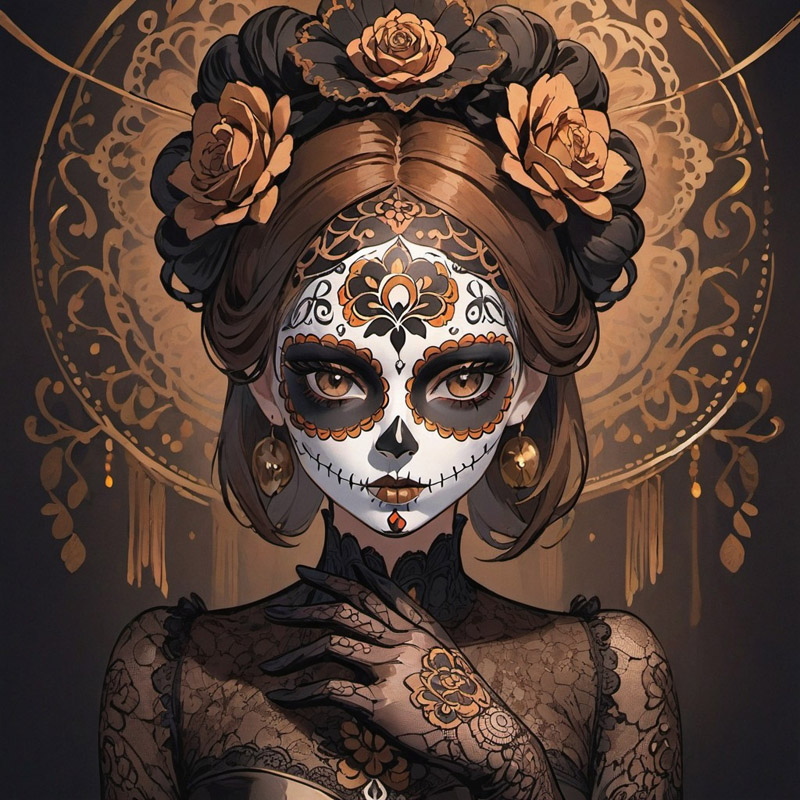
You can use Inpainting to fix or change something in your artwork. For example, I want to remove this extra finger. Here's how it works.
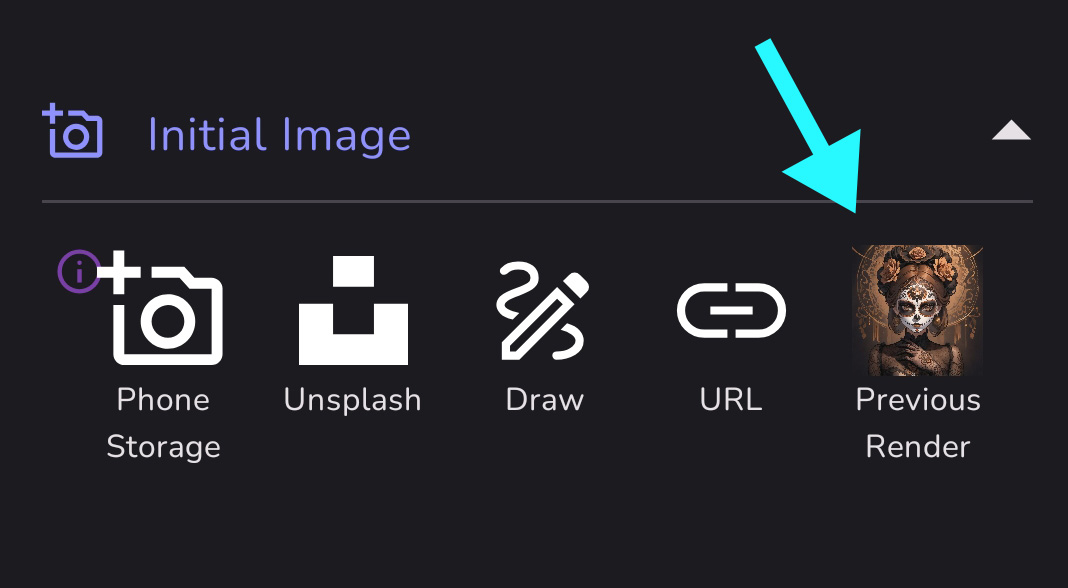
1) Go to your gallery and tap on the artwork you'd like to change. Go to the Advanced Options and down to Initial Image. Tap on Previous Render.
You can also upload an image to inpaint from your phone or the internet.
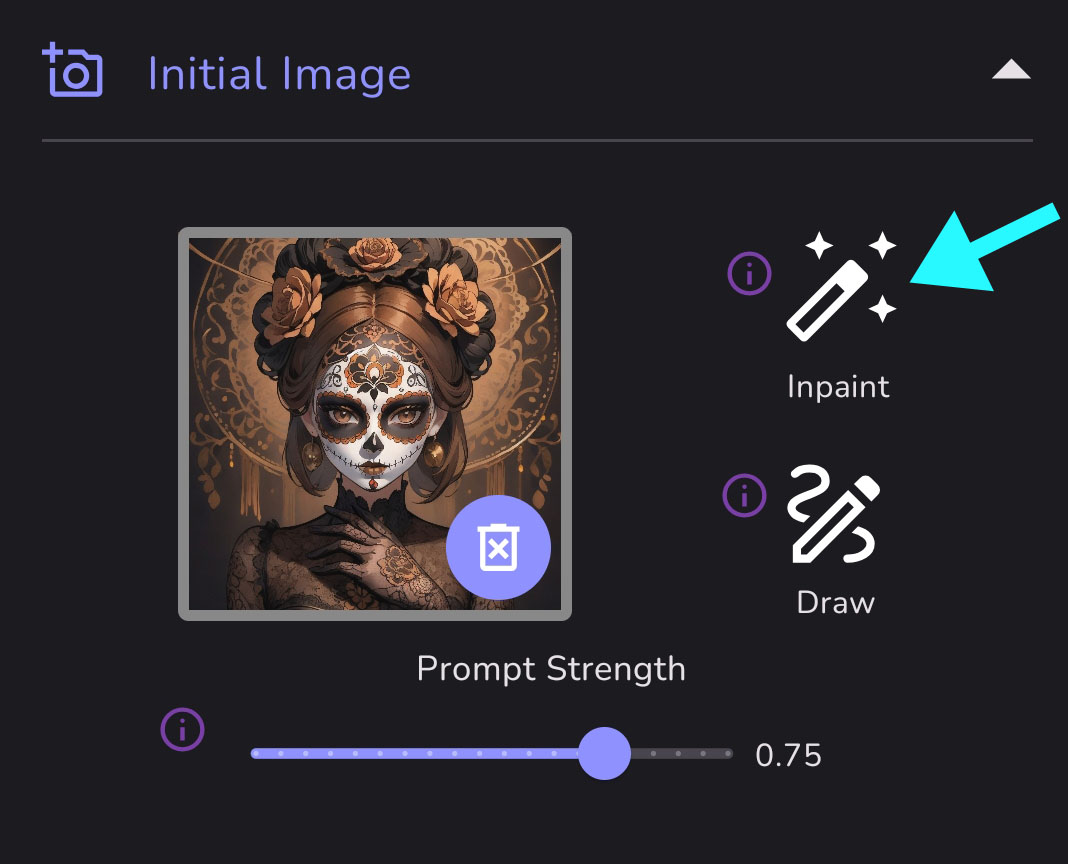
2) Then tap Inpaint.
3) There's a slide bar to increase or decrease the brush size. The brush size preview is circled here. You can also erase, undo/redo, and even crop your image in this menu.
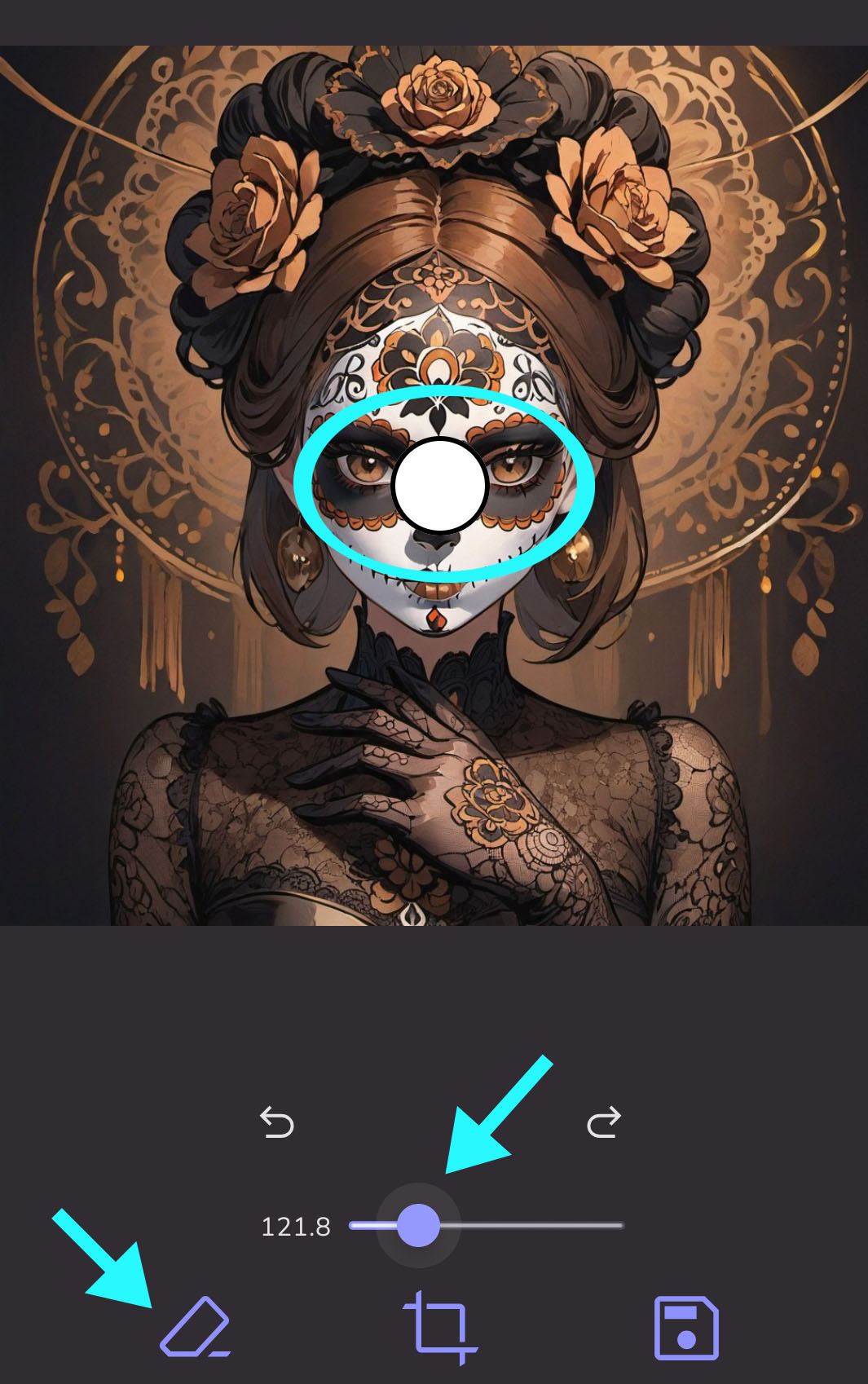
4) Use the brush to draw over the area you'd like to change. This will become the inpainting mask. Most of this hand looks good - I just want to remove the extra finger - so I draw over the finger I want to remove.
Once you're done drawing, tap the SAVE icon in the lower right to exit and save your inpainting mask.
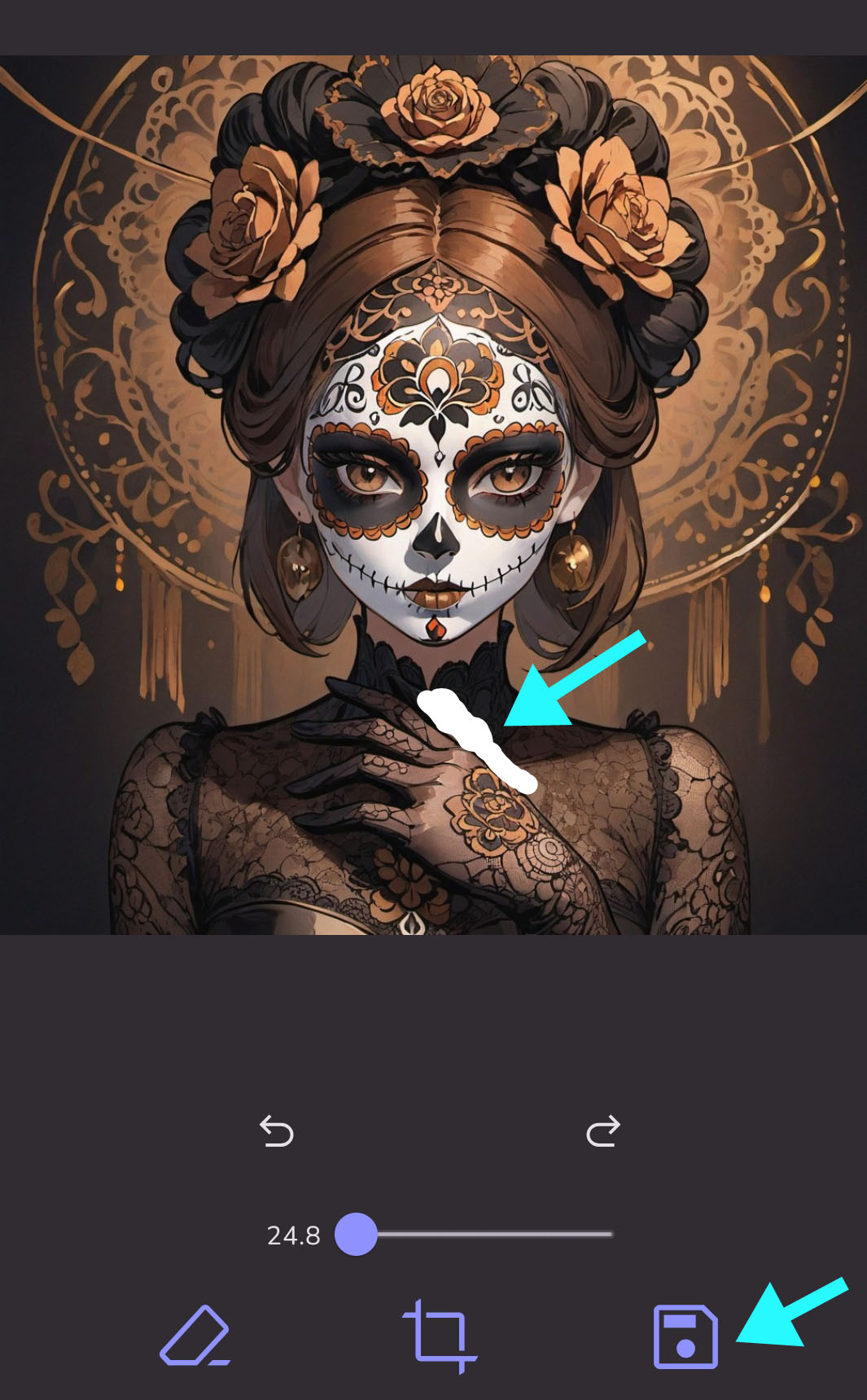
5) Make sure your image with inpainting mask shows up in the preview before proceeding. It takes a moment for the inpainting mask to save.
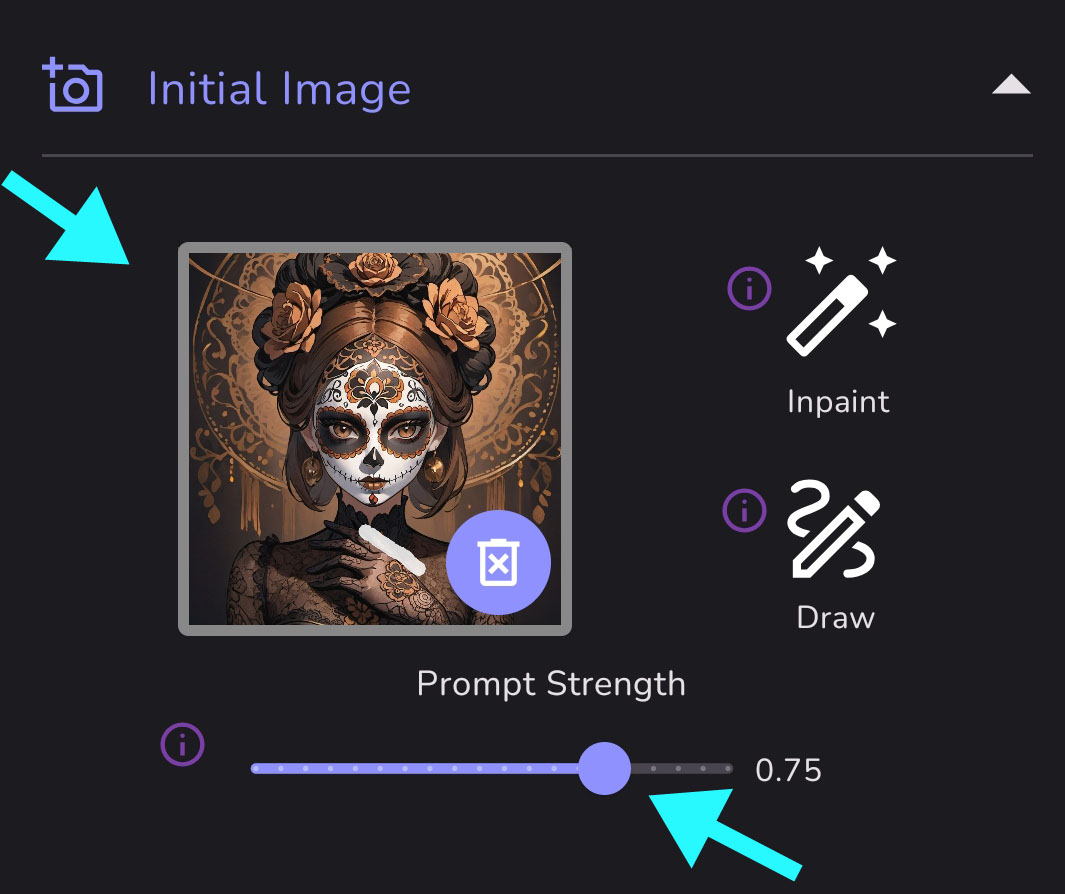
A prompt strength of 0.75 is usually good.
6) Tap Create
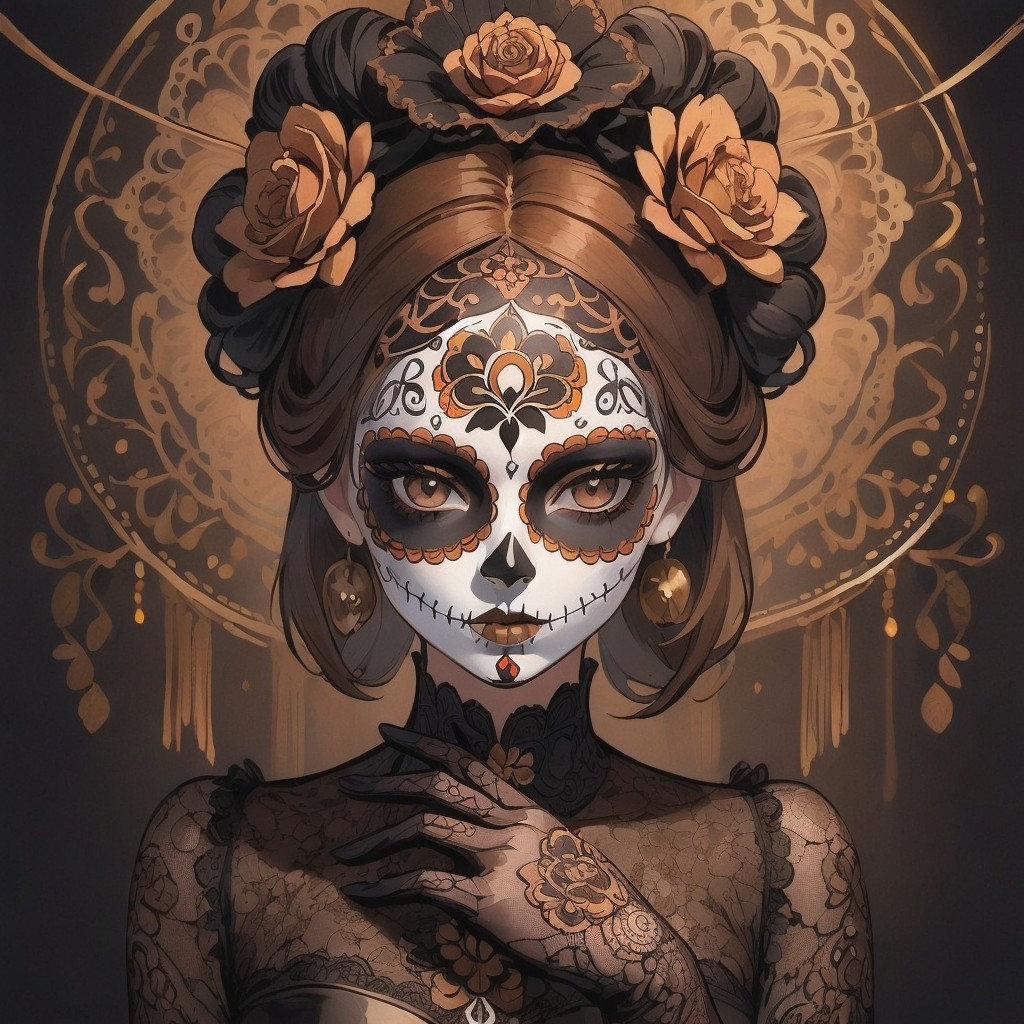
Inpainting has removed the extra finger and painted in a background that goes with the rest of the image.
- If the first render doesn't work, try to Remix with a different seed.
- You often won't need to change the prompt, especially with small cosmetic changes like this. However, it often helps to describe what you want the AI to put into the masked area. If the AI keeps replacing the extra finger with another finger, it might help to change the prompt to “black lace dress”.
- Inpainting can be used to add features or objects into an artwork. For example, you might want the person to be holding a fan. In that case, you'd want to create a mask that was large enough to accommodate the fan, and then describe the fan in the prompt.
¶ Check out this great video demonstration of Inpainting:
Source: the MonAI wiki · Updated · First published