
Add MonAI to your Android home screen so you can open it with one tap, without typing the web address each time. These screenshots show Chrome on Android; menu wording can vary by browser version.
¶ 1. Open MonAI in Chrome
Visit app.monai.art in Chrome on your Android phone.
¶ 2. Open Chrome’s three-dot menu
Tap the three vertical dots at the top right of Chrome, circled in red below. Use the browser menu, not the three-dot menu in MonAI’s bottom navigation.

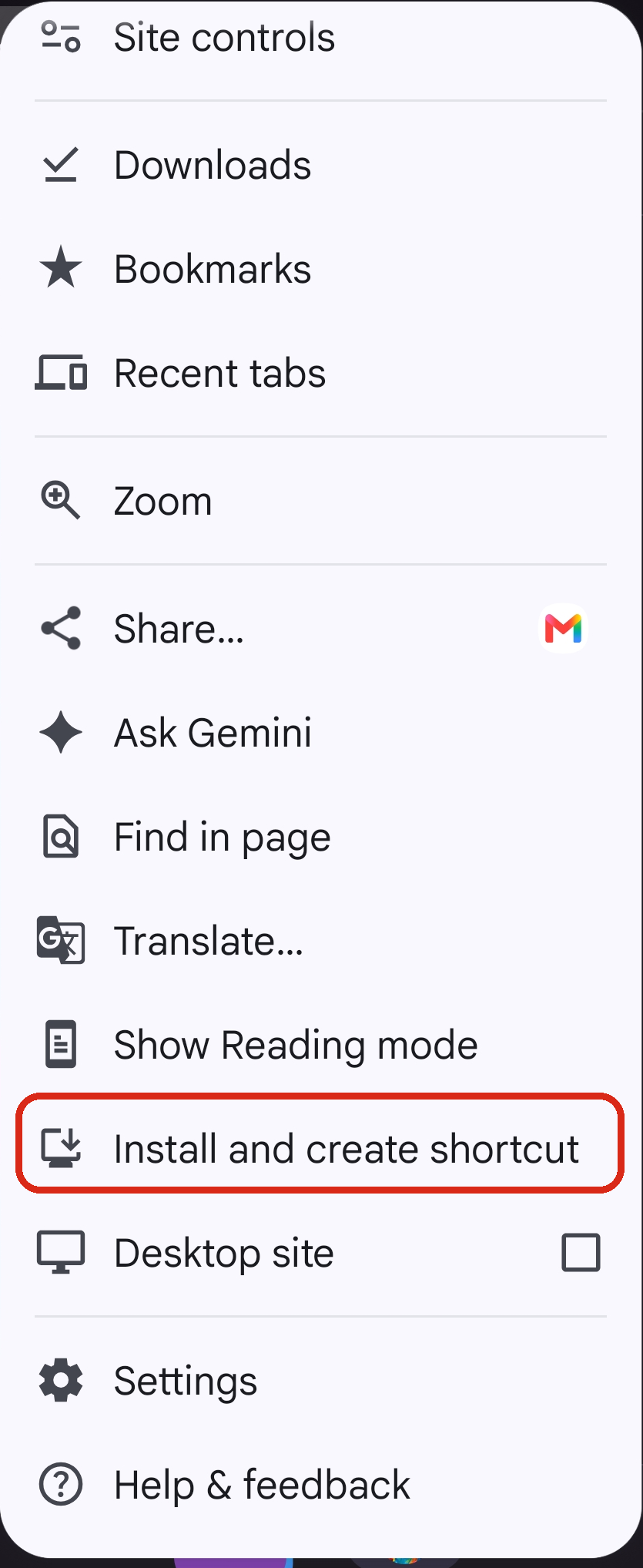
¶ 3. Tap Install and create shortcut
In Chrome’s menu, tap Install and create shortcut, outlined in red below. You may need to scroll down the menu to find it.
¶ 4. Confirm and open MonAI
Follow Chrome’s confirmation prompts. Depending on your version, the next button may say Install or Add to home screen. Confirm when asked to add the icon.
Find the MonAI icon on your home screen or in your app list and tap it to open MonAI. This opens the MonAI web app, not the separate Android app from Google Play.
¶ If you cannot find the option
- Make sure you are visiting app.monai.art in Chrome itself, rather than inside another app’s built-in browser.
- The option may be called Install app or Add to home screen in another Chrome version.
- If MonAI is already installed, look for its icon on your phone or for Open in app in Chrome’s menu.
Source: the MonAI wiki · Updated · First published