
¶ Deleting your Renders
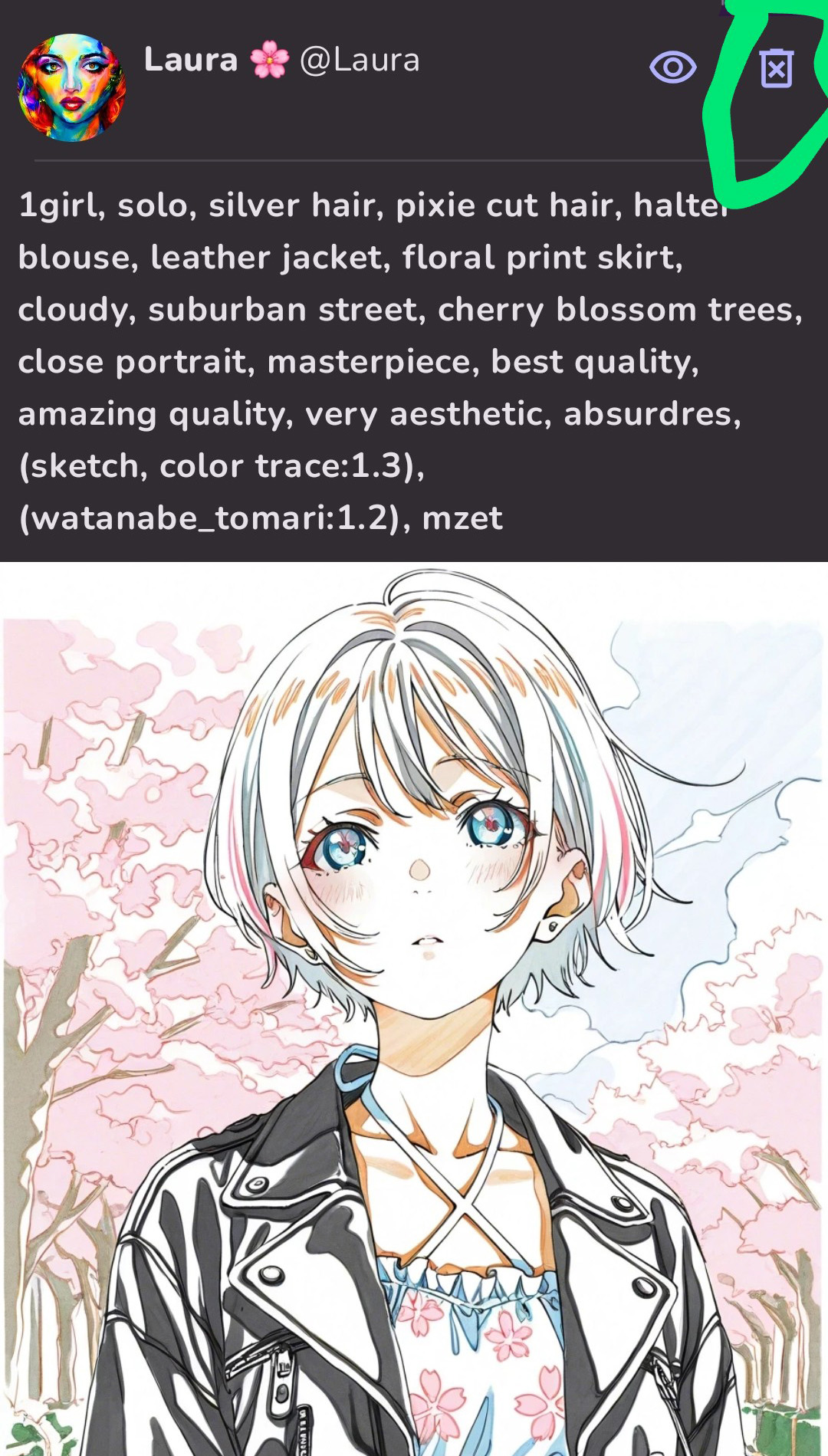
To delete an individual artwork, tap on the artwork and scroll up until you see the eye and trash bin icons at the upper right.
- If you tap the trash bin, your artwork will be deleted permanently.
- If you tap the eye icon, the artwork will be moved to your hidden gallery.
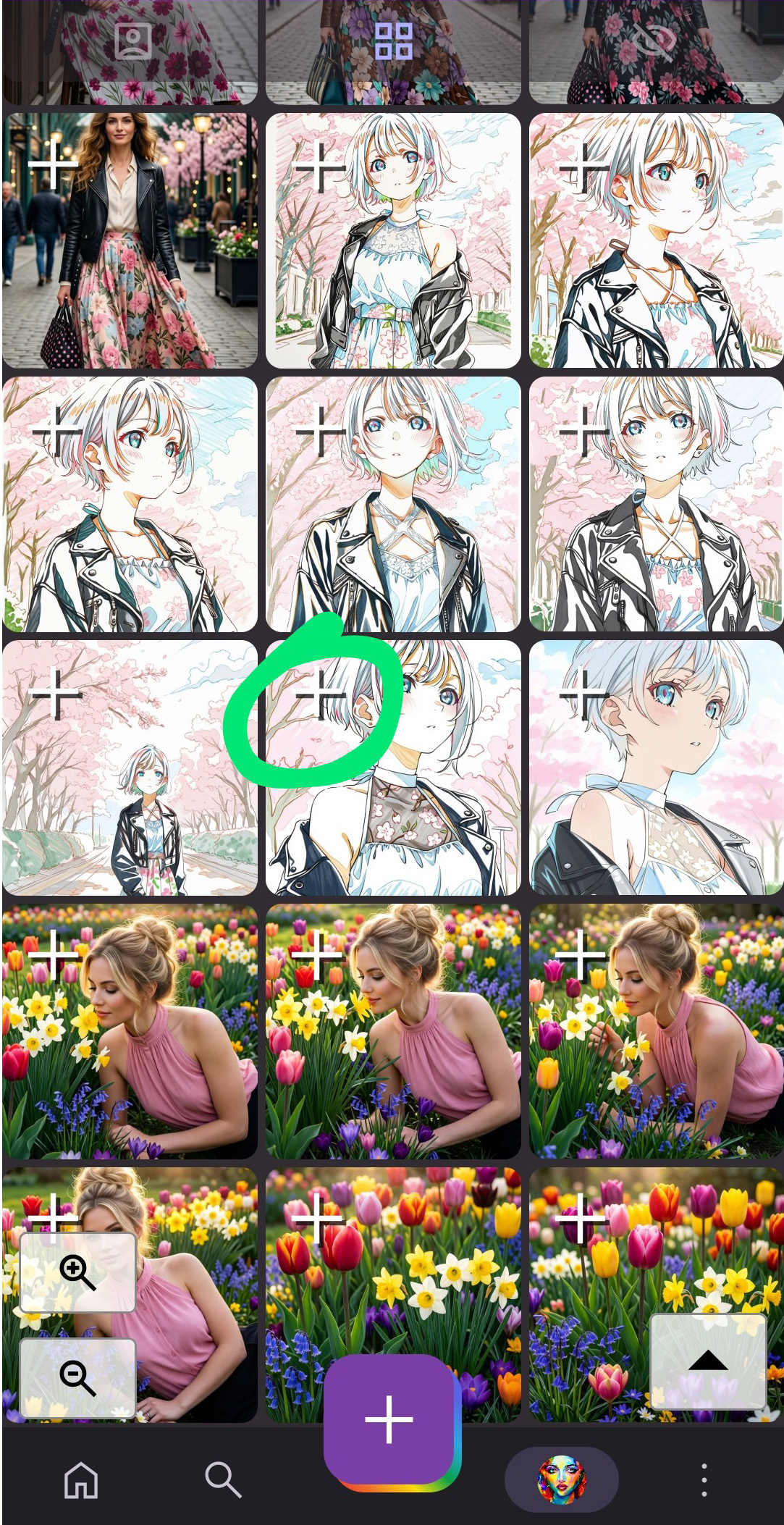
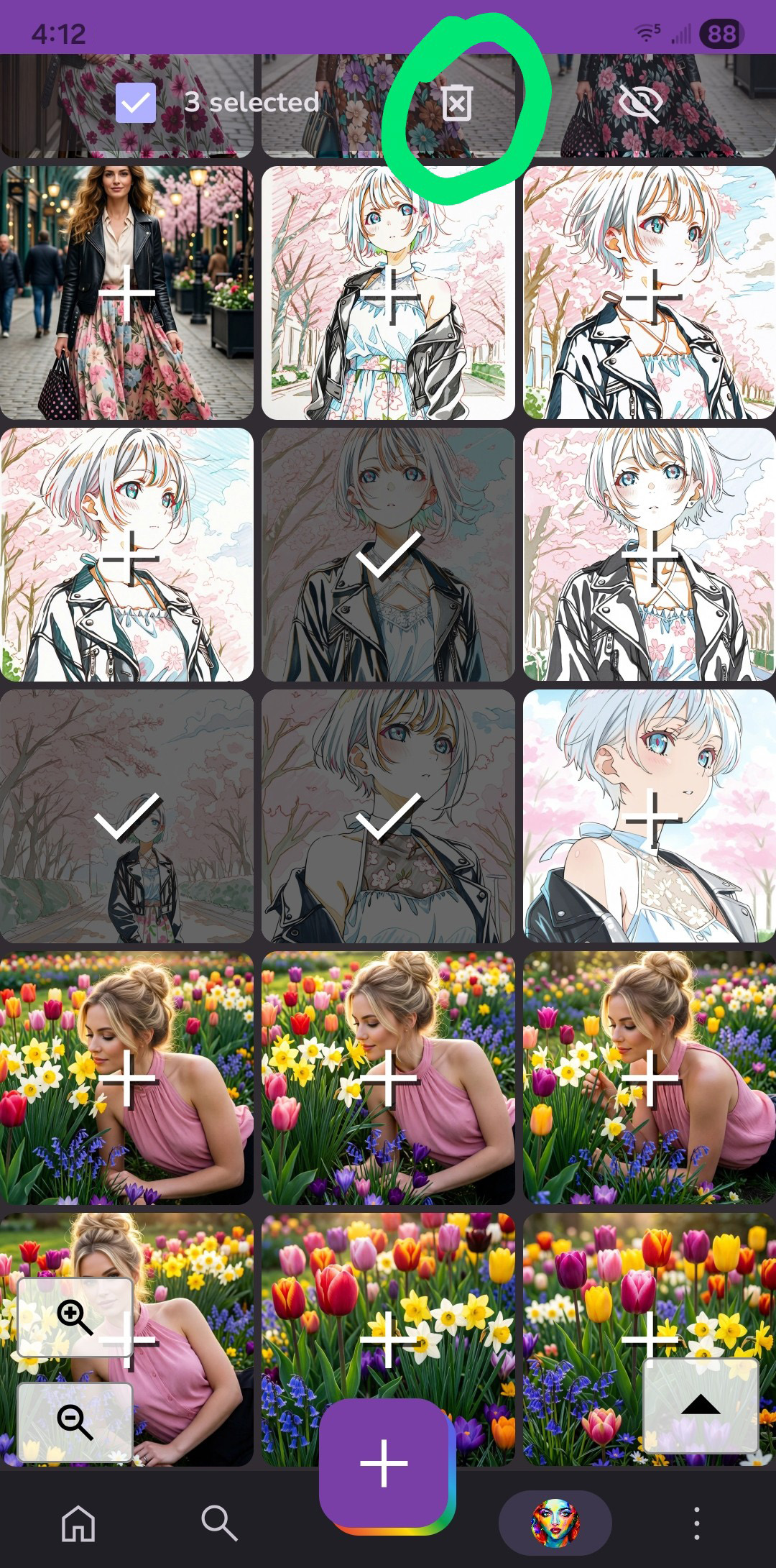
To delete artworks from your gallery, tap on the plus sign in the upper left corner of an image you want to delete. This will bring up a menu at the top of the screen. You can continue tapping images to select more.
- If you tap the trash bin, your artworks will be deleted permanently.
- If you tap the eye icon, the artworks will be moved to your hidden gallery.
 |
 |
¶ Deleting your Initial Images
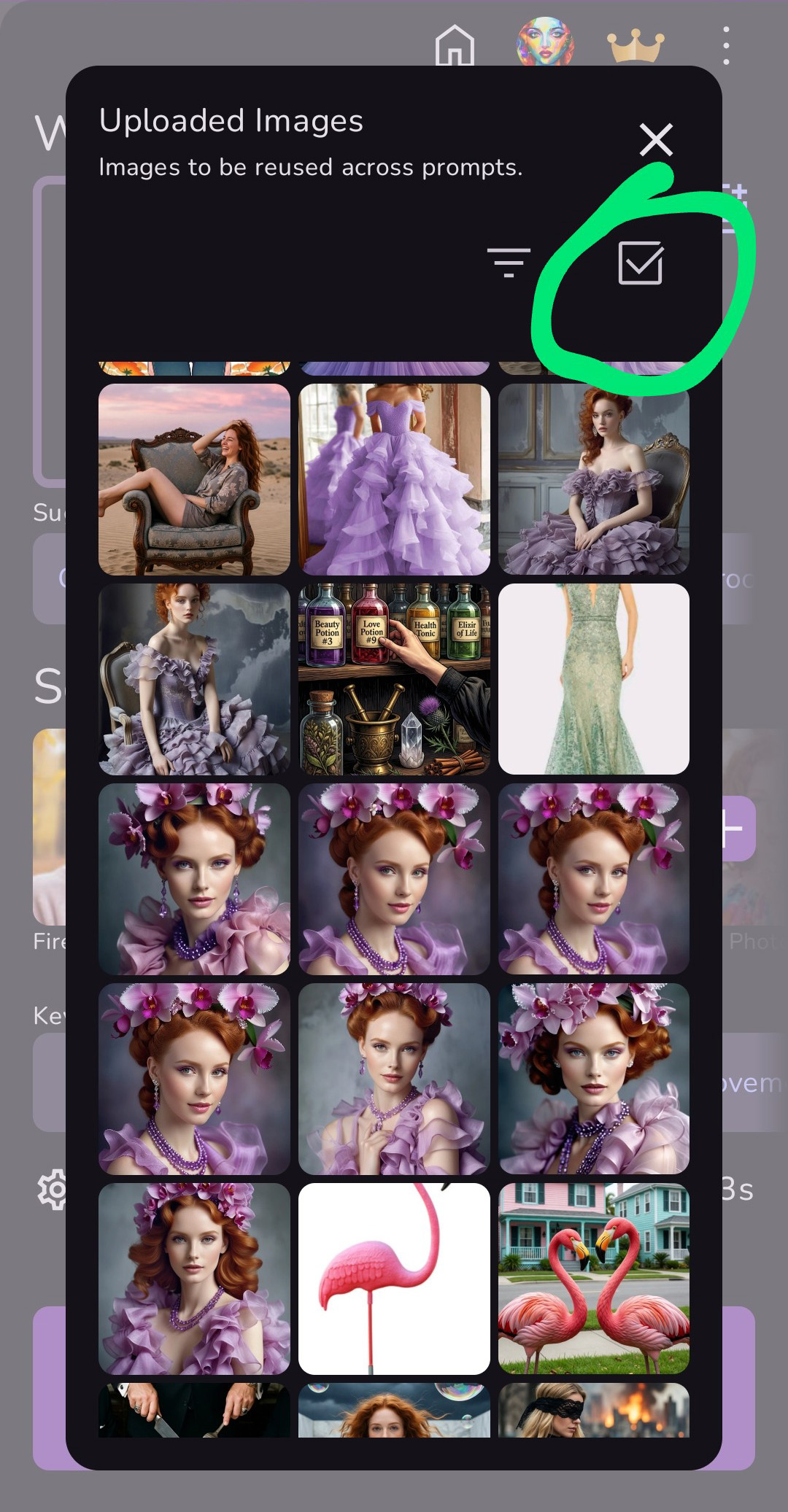
To access your initial images, tap the image icon to the right of the prompt field.
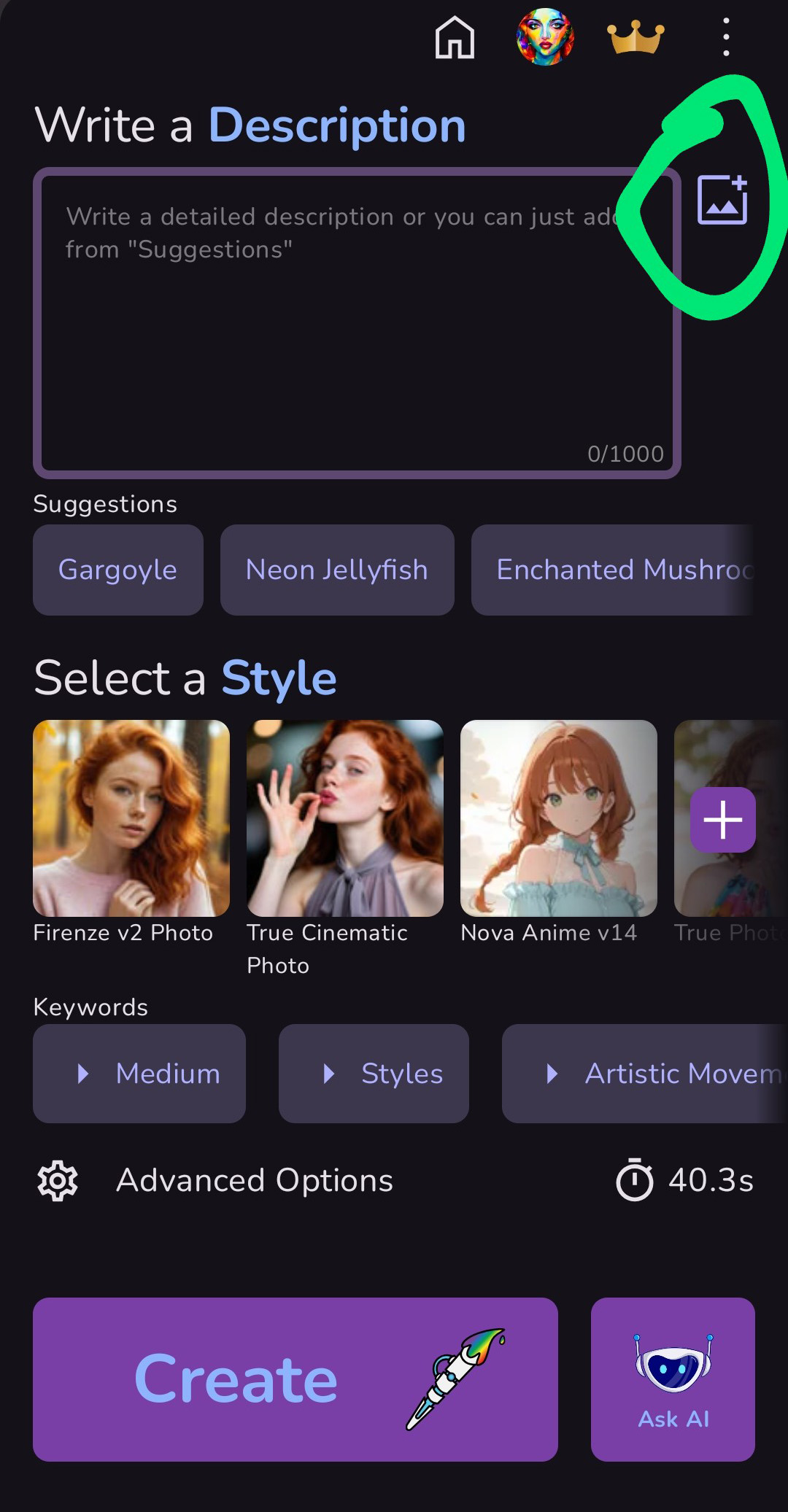
This brings up your Uploaded Images gallery. These are the images you've used as Initial Images in your earlier artwork creation.
To delete your artworks, first tap on the checkbox above and to the right of the images.
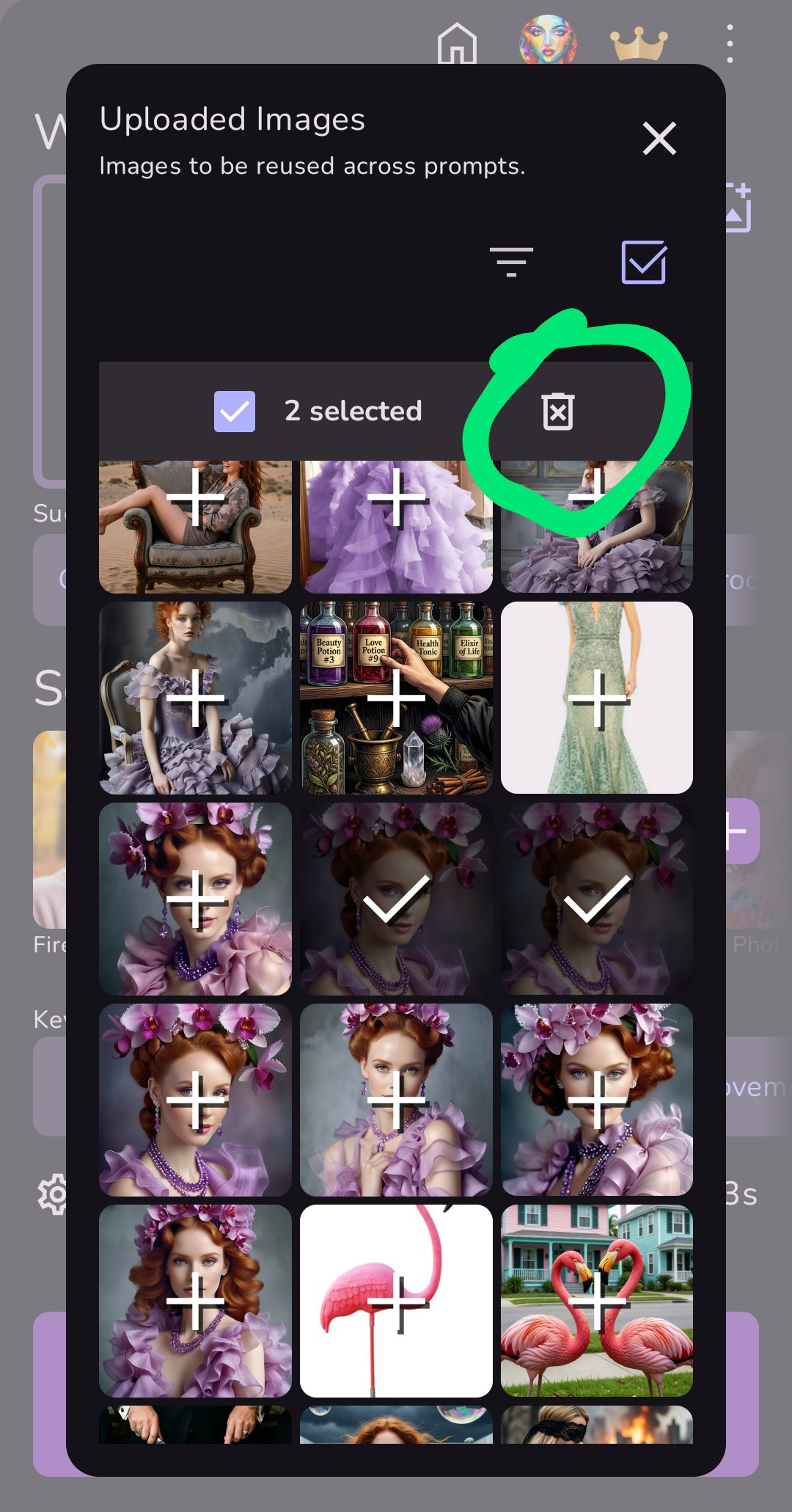
Then tap on the images you want to delete.
Then tap the trash bin. Your Uploaded Image will be deleted from MonAI. It will also be deleted from your earlier artwork creation. The art you've rendered will still be there (unless you've deleted it) along with your prompt and settings, but the Initial Image will not be viewable.
 |
 |
Source: the MonAI wiki · Updated · First published